

Now if you’ve read this post on the simplest and easiest way to start a blog. Then you might be wondering. What is the easiest way to connect your WordPress website to Google Analytics? Well, fear not, that’s where I come in.
WHAT IS GOOGLE ANALYTICS?
Now if you’re not sure why you’d want to connect your blog to Google Analytics, then let me quickly explain why this tool might just be one the best assets in your blogging toolkit. Essentially Google Analytics is a piece of JavaScript code that sits on your WordPress site and allows Google to track the activities of the visitors. Google will then collect this data and present it back to you in the form of easy to understand statistics. The main statistics include:
- Who is visiting your site? You won’t find out their name and address, but you can find out which city or town their from, their gender, age bracket and which device they use to visit your site
- What do your visitors do? You can find out what pages they are looking at? What is your bounce rate? How long do your readers stay on your site?
- How do they find your site? You can find out if your audience discover your site through search engines, social media platforms, linked from other blogs or websites or whether they type the address directly into the search bar
- How do they interact with your content? You can find out what your most popular pages are, and what links your visitors are clicking on
WHAT CAN YOU DO WITH THE INFORMATION FROM GOOGLE ANALYTICS?
In short, Google Analytics is a goldmine of the most useful information you will need. It allows you to find that sweet spot of creating content that your audience will LOVE. It allows you to invest more in the traffic sources that drive the most visitors to your site and it allows you to find your worst-performing pages and take steps to improve them. In short, Google Analytics eliminates the guesswork when it comes to making a decision for your website. Rather than relying on gut feeling, you can use the data to make the right decision. And best of all, it’s completely free to use! So let’s get started. I promise you, this really is the easiest way to connect your WordPress website to Google Analytics.
STEP ONE – SIGN UP TO GOOGLE ANALYTICS
Now if you don’t have one already, you need to head over to the Google Analytics homepage and create an account. If you already have a Google account then you can use that to log in.
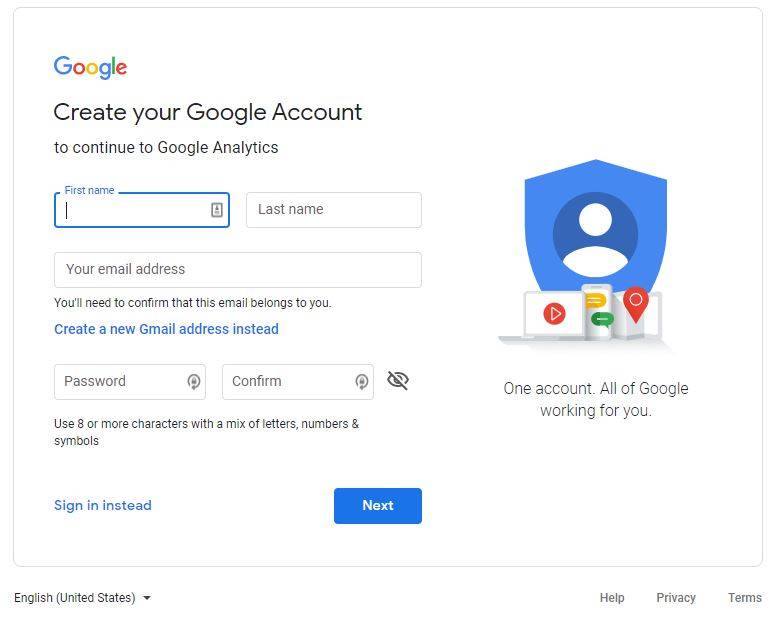
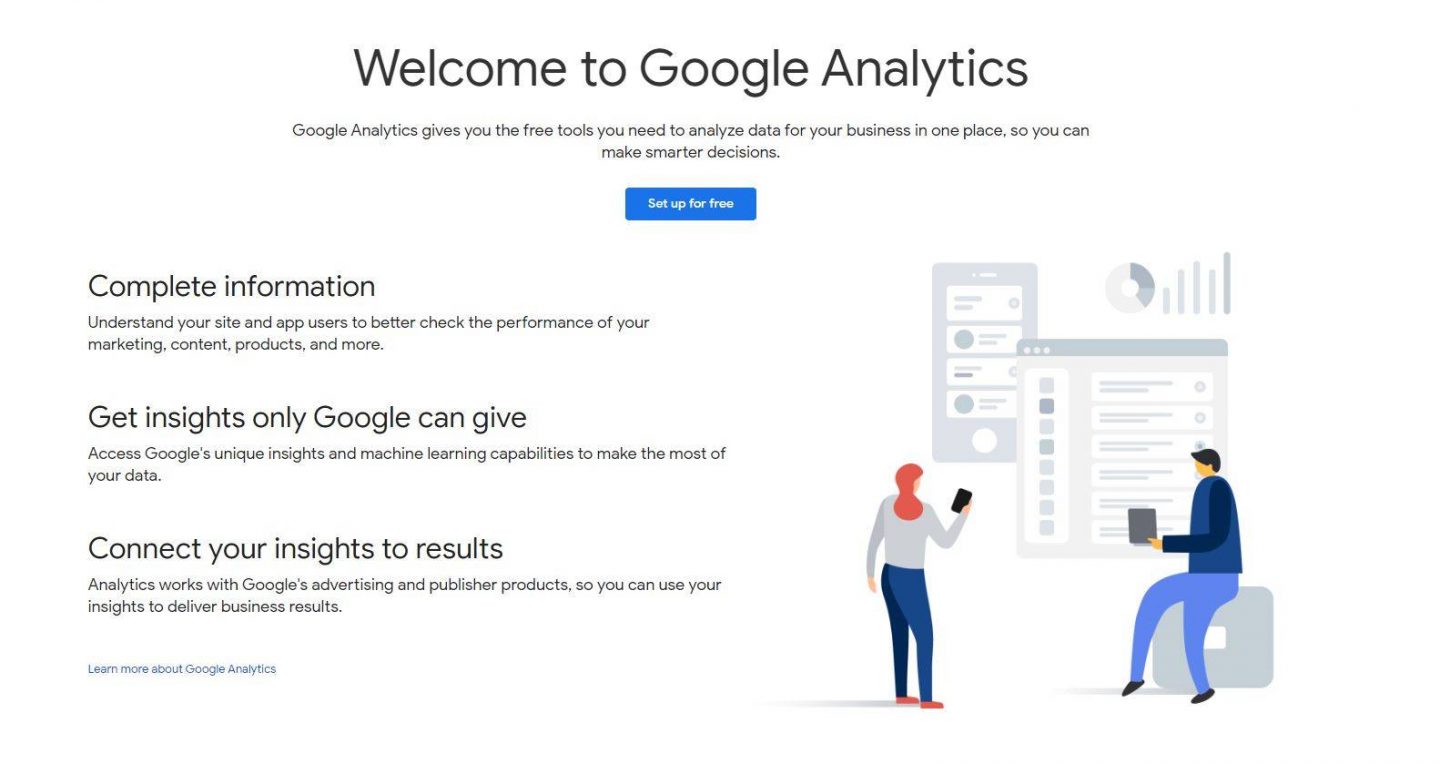
The next page gives you an insight into what to expect from Google Analytics. You just need to hit sign up for free to get started.
On this page, you’ll be asked what your account name is. Now, this isn’t necessary you’re website name. It could be. But as you can track multiple websites with one account, you might want to call it something else. Maybe business websites or business blogs.

At this stage, you’ll be asked to choose between a mobile app and website. Make sure you choose a website.

Next you’ll need to add in your website name, url and set your timezone.
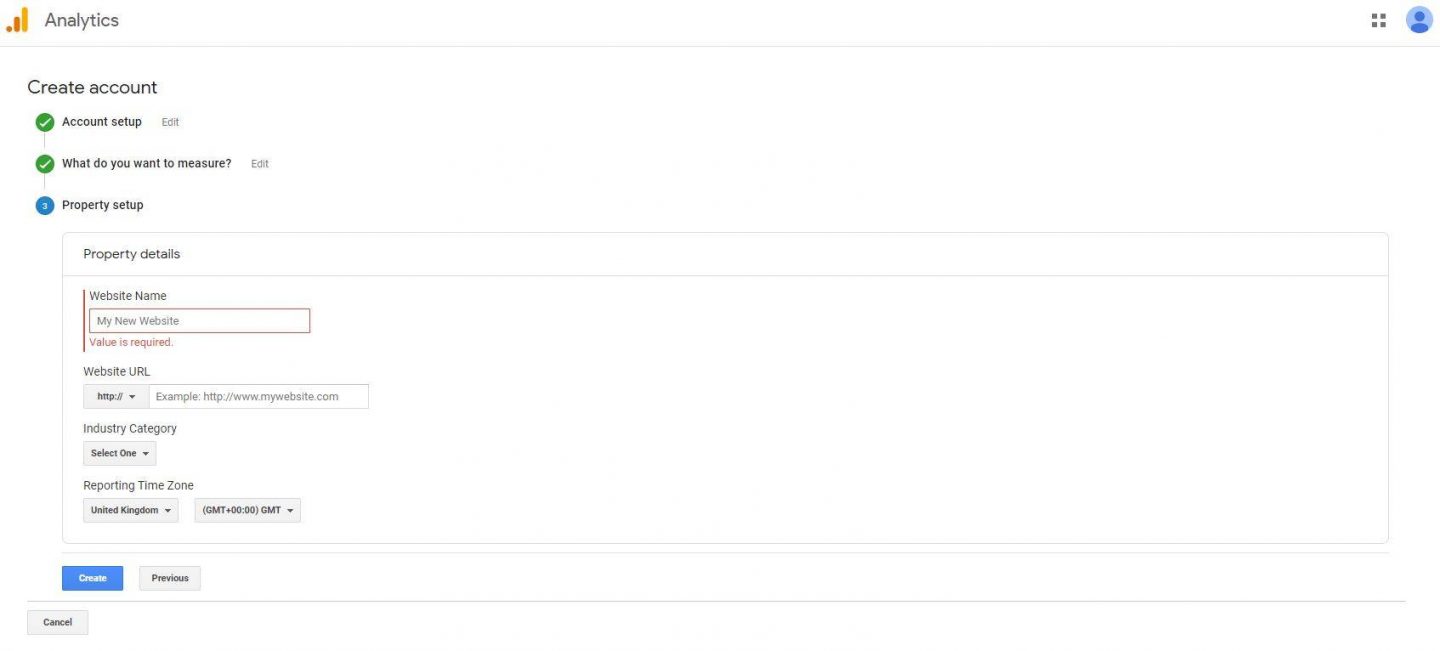
Once you’ve filled in your details, you’ll be taken to your tracking ID page. Which if you’re setting up Google Analytics the way I’m showing you. Then you won’t need this page. But if you’re going to manually add it in, or if you ever need to find it. It’s in Admin > Tracking info > Tracking code.
ADDING GOOGLE ANALYTICS TO WORDPRESS USING A PLUGIN
Now the easiest way to add Google Analytics to WordPress is by using a Plugin. And the most popular one is Google Analytics for WordPress by MonsterInsights.
STEP ONE – INSTALL THE PLUGIN
Naturally, when using a WordPress plugin, we’ll need to install it first. To do this, head to Plugins > Add New. And then search for it by name. Install it and then activate it when it’s done.

STEP TWO – CONNECT TO GOOGLE ANALYTICS

Once the plugin is active, you’ll have a new menu item called Insights in your site’s dashboard. Open it and then click on Connect MonsterInsights and setup website analytics. You’ll then be asked to pick a category that best suits your site. Once you’ve picked your category you can click Connect Monsterinsights. If you have multiple Google Accounts, you’ll be asked to pick the account you want to use for tracking.
Google Analytics will then ask you to give permission for the WordPress plugin to access your data. This is necessary so make sure you allow it.

Then click Complete Connection. You’ll then be taken to the recommend settings page, you don’t need to change anything on here so just click save and continue.

You’ll then be asked about any recommended addons that you want to add. You can choose to upgrade to pro at this stage if you want. If you don’t want to. Just click save and continue.

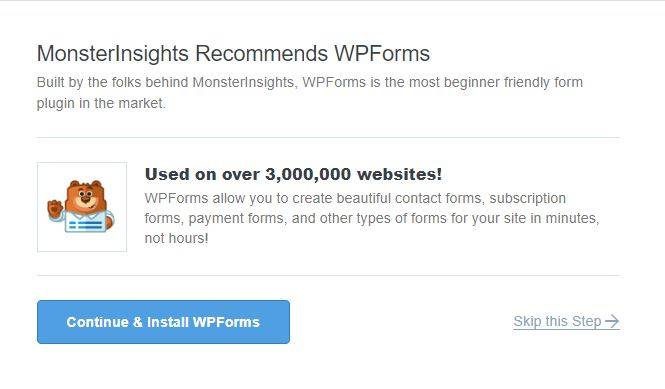
Next you’ll be asked whether you want to download and install WPForms. Again, this is your choice. I personally use a different form plugin – Ninja forms. So I would suggest you click skip this step.
Congratulations – you’re now connected! Told you it would be easy. You can see reports through your MonsterInsights tab in your WordPress dashboard under Insights> Reports. Or you can view your reports in much more detail through the Google Analytics platform. And if you’re wondering how to use it. Don’t worry, I’ve for you covered with this post which explains everything you need to know about Google Analytics.
So that’s it, the easiest way to connect your WordPress website to Google Analytics. Let me know in the comments below whether this blog post has helped you connect your blog to the Analytics platform. And what other issues you need help solving.





Leave a Reply